 llip
Live overlays for iRacing
l llipp
Serious data. Sweet wrapper.
See-through overlays on top of iRacing while you drive, and the very same pages as OBS sources for your stream. Built for endurance racing: fuel you can trust, gaps measured like a timing system, pit stops and team stints.
- 19 overlays
- on your screen and in OBS
- free, no account
- nothing tracked
Your screen, more or less: the overlays sit on top of the game. Point at one for its name, click it for more. Every picture is the real overlay, drawn by the app from its demo race.
Fuel you can trust
Every fuel overlay runs on one plan: every lap measured, a cautious burn, the real race length, and the stops worked out to the lap. How the maths works
Fuel runway screen · OBS
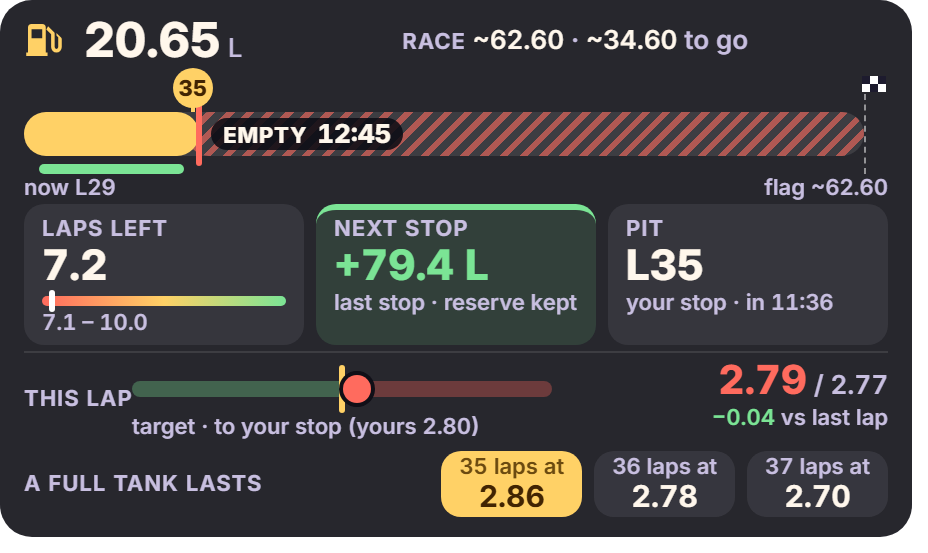
The rest of the race as one line to the flag: your tank, where you'd run dry, the pit window. Under it the answers: laps left, the next stop (FULL or +x L) and BOX on the lap to stop.
Fuel simple screen · OBS
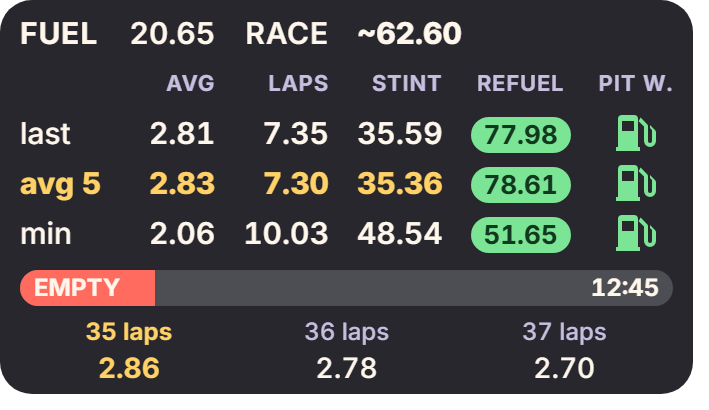
The classic fuel table: per lap, laps left, laps on a tank and the refuel to the flag.
Fuel buddy screen · OBS
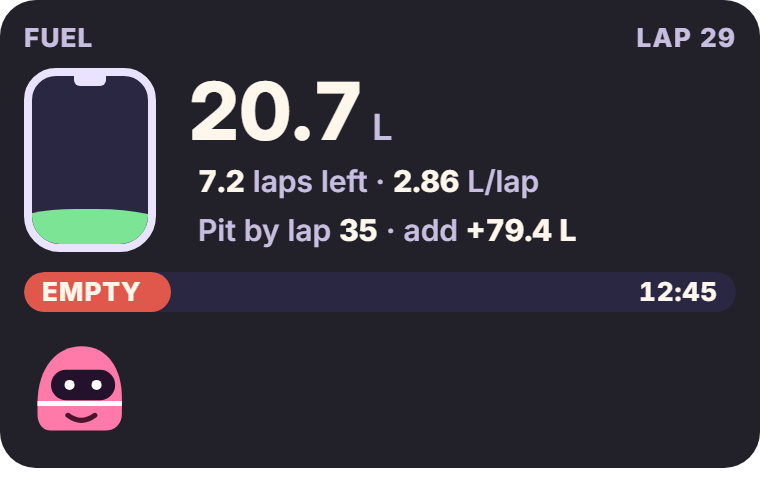
A compact fuel card with a pit crew buddy who calls it in plain words: "Box this lap! Add 79.4 L."

Fuel assistant screen · OBS
A low strip for saving fuel: a live arrow against your last lap over the same stretch of track, this lap's estimate against your target, and your last five laps.
Pit lane screen · OBS
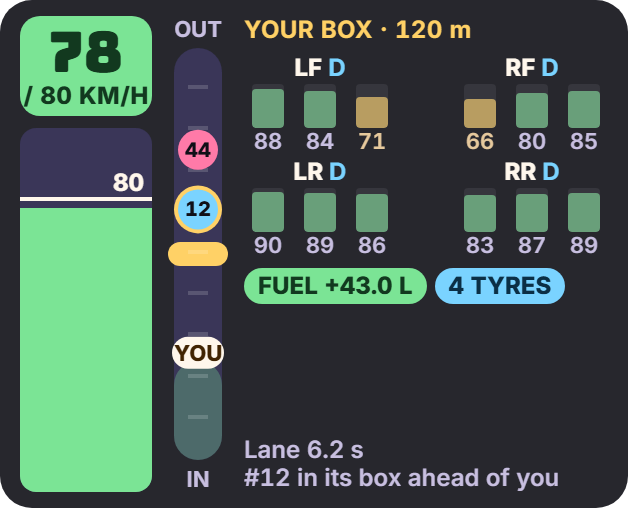
Your speed against the limit, the lane with your box and the cars ahead of you, and what the stop will do: fuel and tyres, with the tread left on the ones you came in on.
Auto pit fuel
Fills in iRacing's pit menu as you come in, with the newest numbers: a full tank while more stops follow, just enough on the last one. Change it yourself and it backs off. Rounded up, never down: carrying 1 L beats running dry.
Who's around you
Gaps measured like a timing system, not guessed from track position, and the whole field at a glance.
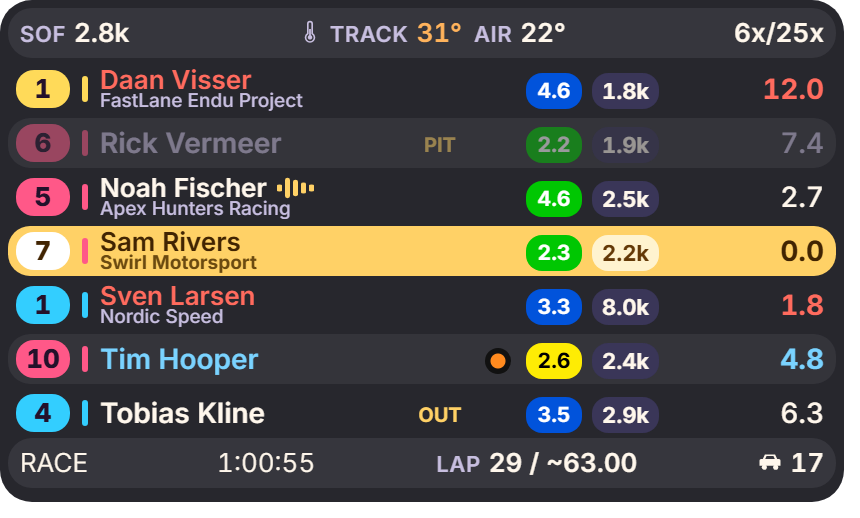
Relative screen · OBS
The cars around you with measured gaps: the time between two cars passing the same spot. Class colours, flags, iRating, pit status, and bars above and below that you fill yourself.
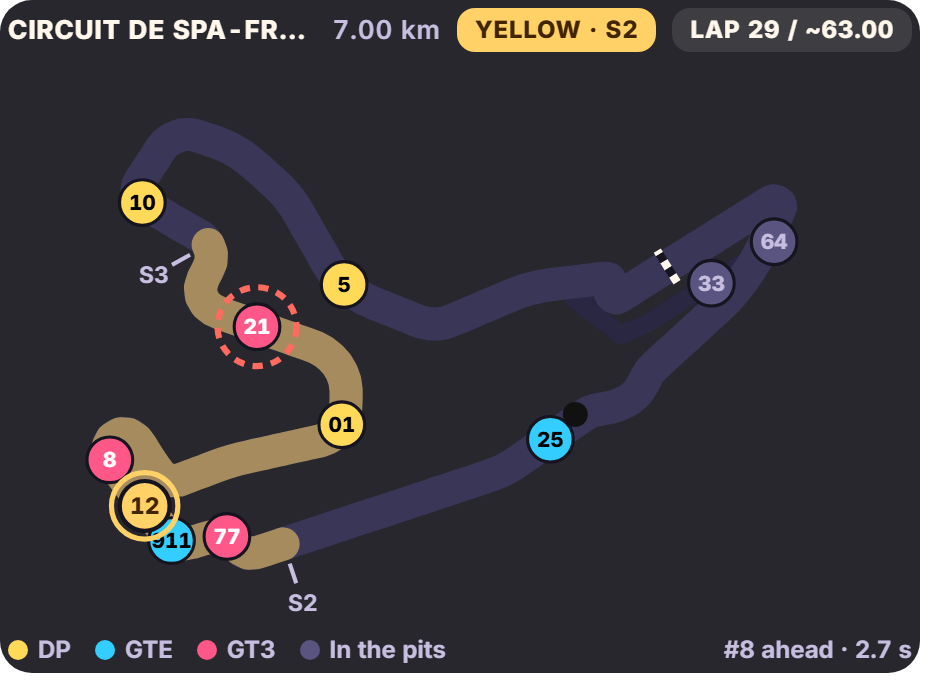
Track map screen · OBS
Every car round the lap with the pit lane, sectors and yellows. After you cross the line, each sector of your lap lights up purple, green or yellow.
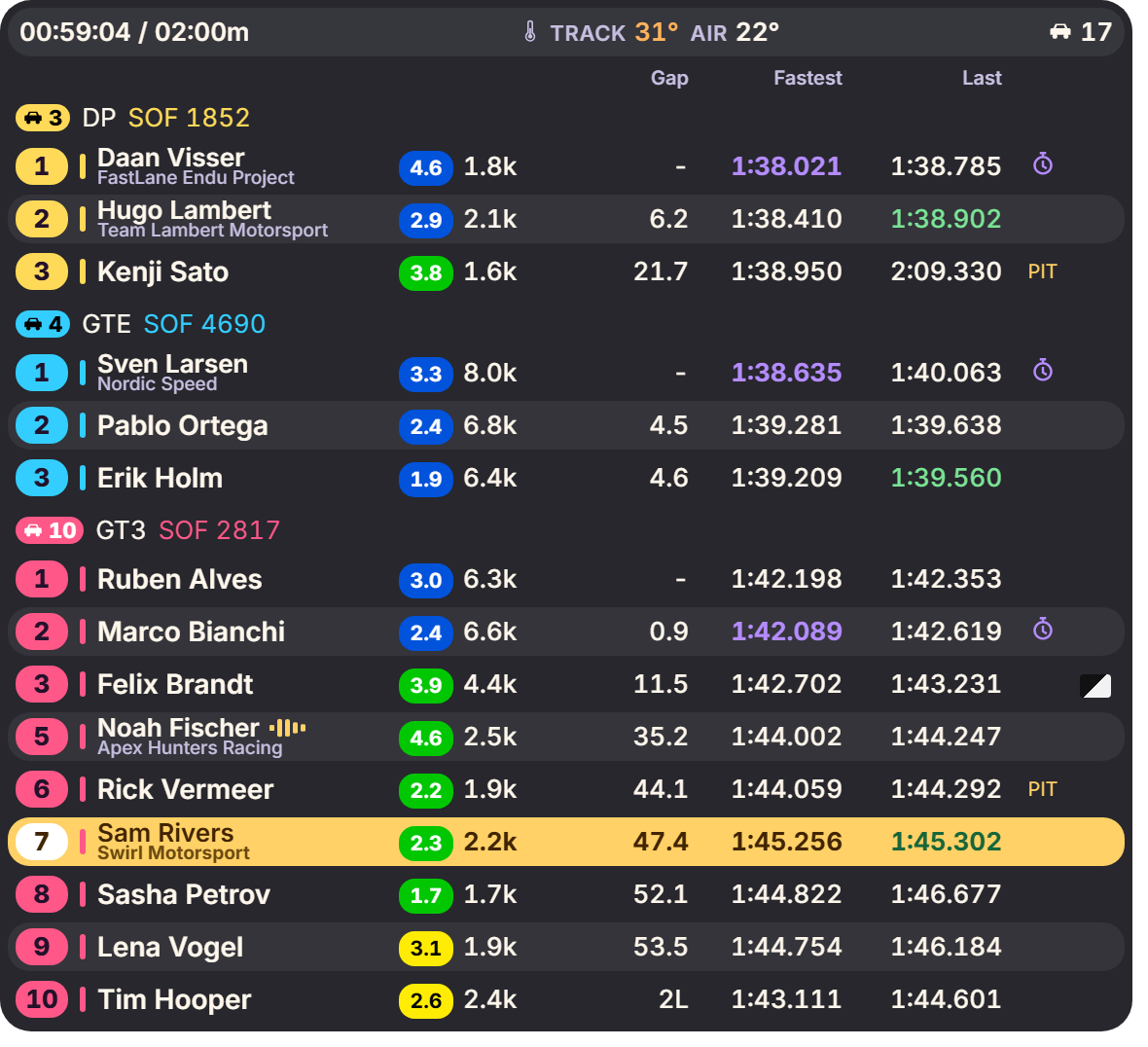
Standings screen · OBS
The field by class: the top of every class plus the cars around you. Intervals, best and last laps, each car's last pit stop ("L14 · 31.4s") and places gained from the real grid.

Traffic lane screen · OBS
A strip of track from 8 seconds behind you to 16 ahead, with the other classes at their measured gap and an arrow on the ones closing in.

Race info screen · OBS
Flag, session, time, lap, position, incidents, lap times, temperatures, weather, time of day and SOF, with a switch for each.
Driving aids
Small, quick and out of the way.
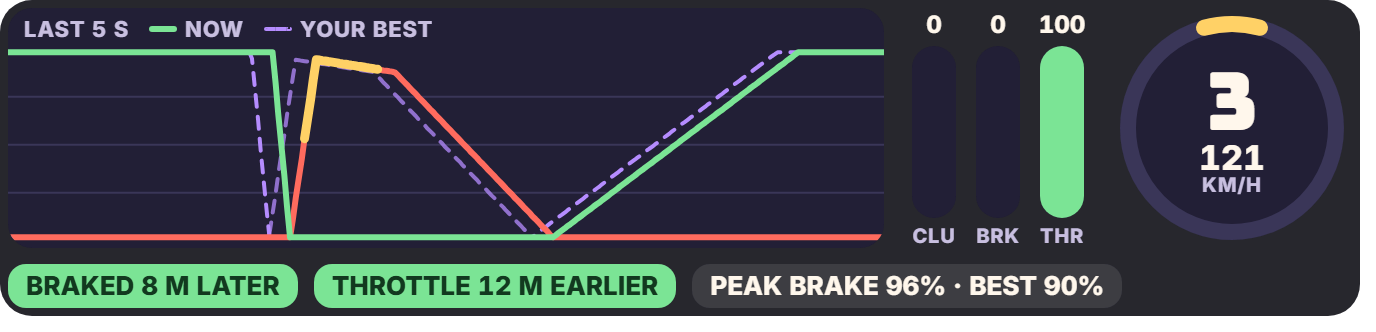
Pedals screen · OBS
Throttle and brake traces with your best lap as a ghost, gear, speed and steering, and your last braking zone against your best at the same corner: so many metres later or earlier.
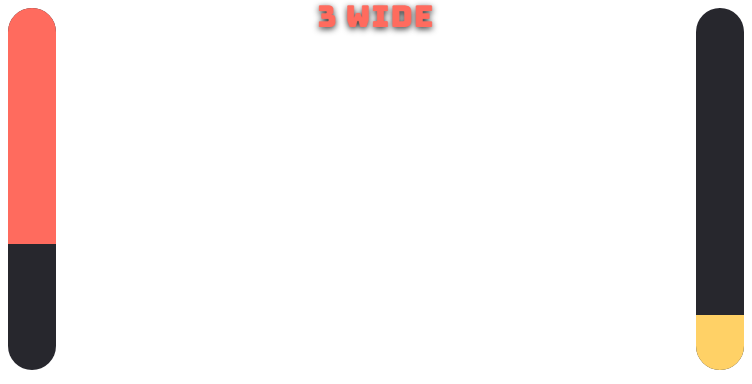
Spotter screen
A bar either side of your car that fills where the other car is beside you, yellow then red, and 3 WIDE when it is. Or the Radar look: you from above, on the road around you.
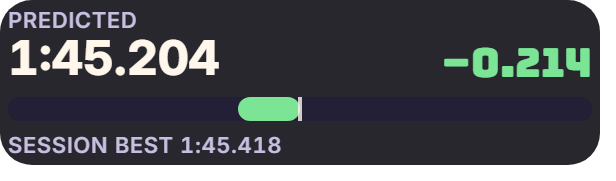
Delta bar screen · OBS
Your live delta to your best lap, and the lap time you're on for.
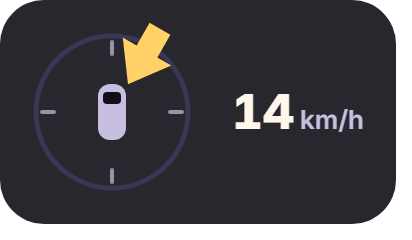
Wind screen · OBS
A compass around your car: where the wind hits you from, and how strong.
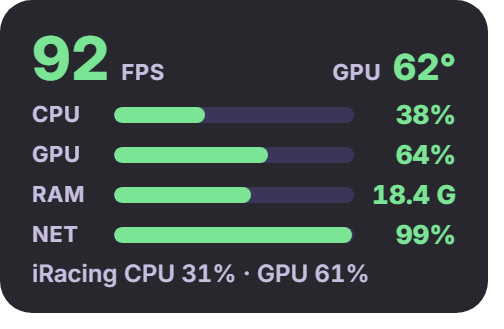
System monitor screen · OBS
How your PC is coping: frame rate, CPU, GPU, memory and network, and what iRacing itself uses. Nothing extra to install.
Put them where you want
Ctrl+Alt+E and drag the overlays into place: they snap to the screen's edges and centre and to each other. Ctrl+mouse wheel changes an overlay's size. One window holds every setting, with a live preview beside it.
Made for OBS too
Every overlay is also a browser source for OBS, with its own look if you want one. Your screen stays calm; the stream gets the full show.
One source for all of it
Add one browser source to OBS and lay your overlays out on your stream's canvas inside Lollipop: drag them onto a grid, pick what shows while you drive, in the garage or while you watch, and put them in front of or behind each other.

Ticker screen · OBS
The whole field crawling across the screen like a TV ticker, class by class, with story cards in between: the fastest lap, the biggest mover, the closest battle, who's in the pits. Your own position stays pinned.
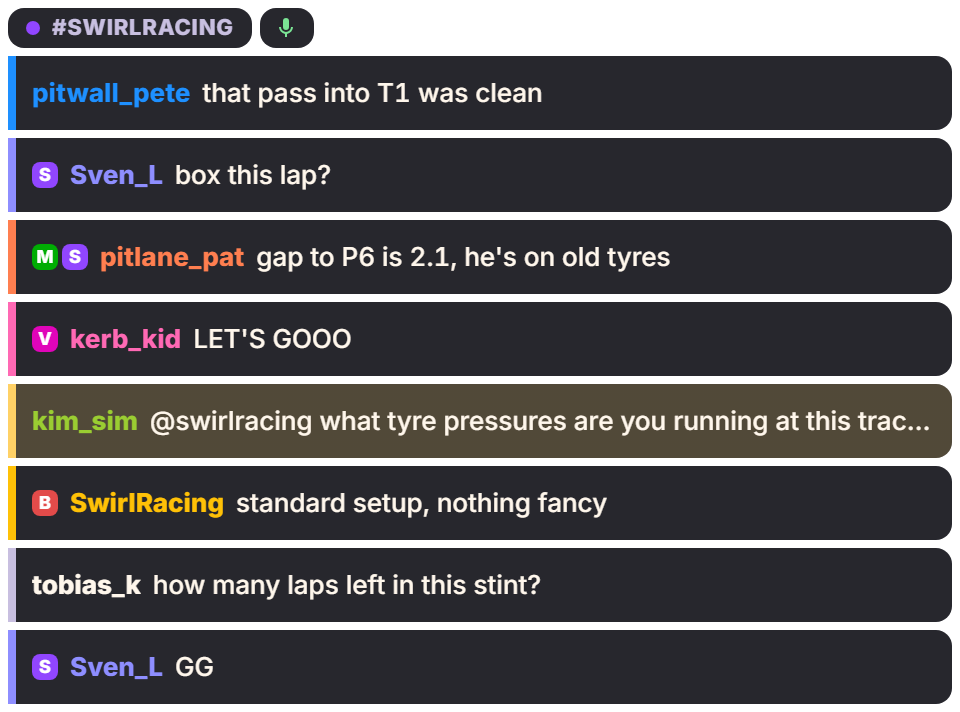
Twitch chat screen · OBS
Your channel's chat, with badges and mentions picked out, so you can read it without leaving the car. The header can show your OBS mic, and warns you when you talk into a muted one.

Music screen · OBS
What's playing, with play, pause and skip.
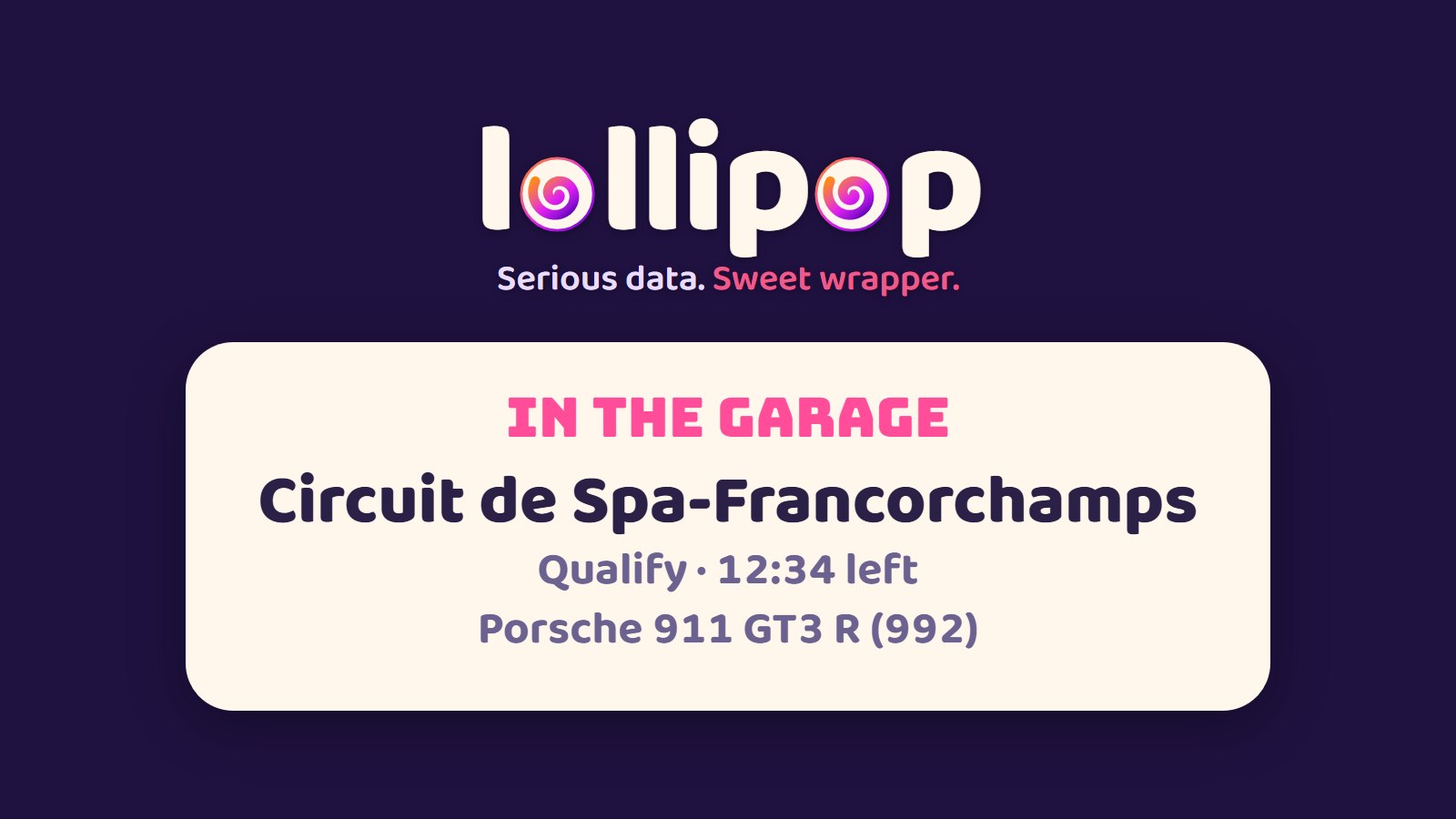
Garage cover OBS
Covers the stream while iRacing shows the garage, so viewers don't see your setup. Up the moment the garage opens, gone a second after it closes.
Joy moments
Your race, celebrated: small and quick on your screen, big banners, the stint card and confetti on stream.
- personal best
- passes
- clean-lap streak
- pit stop report card
- caution and green
- halfway
- 10 minutes left
- final lap
- the finish
Endurance, together
For team races, where the car changes hands and someone has to keep an eye on the plan.
Team fuel sharing
While a teammate drives, your fuel overlays show their real fuel, not an estimate. The team owner makes a code for each driver and can stop one at any time. Without a code, nothing goes online.
Pitwall
A full-screen page for a second monitor, pit-wall style: big numbers you can read walking past the sim, timing with sectors and top speeds, the fuel plan, and where you'd rejoin after your stop.
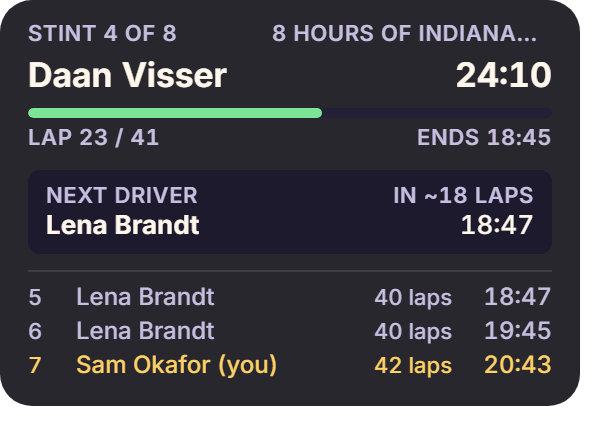
Stint plan screen · OBS
Your team's plan from iRacePlan: the stint going on, the next driver change ("You're next") and the stints after it.
Race review
After the race, a report card: a headline, the moments that decided it and what each cost, your lap times, a jump into iRacing's replay, and a share card with car numbers, never names. It stays on your PC.
The fuel maths
The easy way is fuel used ÷ laps. Lollipop has a proper fuel engine instead, in six layers, written as a spec first and checked against hundreds of worked cases.
Ledger
measures every lap
The tank is read 60 times a second, and a lap's fuel is cut at the moment you cross the line. In-laps, out-laps, cautions and messy laps are tagged, and only clean laps count.
Burn
what you use
Cautious on purpose: your recent clean laps and your typical lap, whichever is thirstier. Low laps are thrown out, thirsty ones never are.
Horizon
how long the race is
A timed race is played out: the leader's laps at its pace until it crosses the line after 0:00, then your last lap.
Planner
the stops
Learns what your in- and out-laps cost per car and track, then works out the stops, the window and FULL or +x L, with a reserve kept.
Targets
what to save
The fuel per lap that saves a stop, worked out exactly. Hit it two laps running and the plan counts on it.
Stabilizer
no flicker
Bad news at once, good news on your next line crossing, so the numbers don't jump about while you drive.
Free. Properly.
Lollipop is a hobby made by a sim racer, for sim racers. Every overlay is free, for everyone.
- No account, no ads, no trial.
- Nothing about you is tracked or sold.
- Updates inside the app, never while you drive.